I will describe my home-routing setup here, how and where I found information and how you can maybe run this at your place.
These “instructions” apply to these preconditions:
- you have a Fritzbox of some sort
- you want to try OPNSense
- you want to try OPNSense HA
- you want to virtualize your router (here done via Proxmox)
- Dual Stack IP (IP and IPv4)
- receiving a delegated IP range.
I am virtualizing my routers in hopes of:
- faster inter-host communication
- a DMZ for my (exposed) servers
- better control about MTU (maybe, hopefully)
A good (german) video on IPv6:
What is where:
Preconditions
Youtube Guide
This guy does everything im going to talk about: Divgitally Only follow this guide till 4:11min though, as after that its deprecated stuff. Have a look at OPNSense Setup instead.
Proxmox interface setup
See the official guide on how to get it installed: Proxmox - Open vSwitch
While switching to OVS, I recommend that you first delete ALL Linux-bridge stuff and then create the OVS bridges. (Do not click “Apply” while there is nothing configured :) )
This ensures, that the network device is transformed into a OVS Port, enabling the OVS bridges to correctly interface with it.
I am running one OVS-Bridge with multiple Int-Ports, which are then connected to the OPNSense VM. Meaning, the OPNSense has no Idea VLAN’s exist.
Installing OPNSense
Long text version with side-quest info: zenarmor tutorial
- Download the image (im choosing serial, amd64)
- Extract the image and upload to Proxmox host.
Image type
Pay attention that you get a .iso, not a .img as this failed to boot on my machine. More info here
- Create a new VM with the ISO, don’t boot yet, don’t assign networking interfaces.
On how much resources:
- 2 Gig of RAM
- 2 vCPU
- 10 Gig Disk
This is what I use (i am low on resources) and the only thing id say: ensure that your disk is big enough…it should not consume much, but depending on your setup, log files start to exist.
If you notice your running low on disk from the get-go, you might have a LOT of swap configured. Here is how to change that: OPNSense Swap
Link to original
OPNSense
Consists of these topics:
Getting addresses
DHCP ranges and prefix delegation
IPv4
Good YouTube-Video on dnsmasq: Home Network Guy
IPv6
Official OPNSense Documentation
Your ISP should give you a sub net of global IPv6 addresses. This makes routing easier, since these are truly global unique IP-addresses (GUA) (and enables you to open whatever port you’d like!).
Since OPNSense is a new router in the net and I wont abandon my Fritzbox, here is how prefix-delegation and the subsequent router-setup works:
- Read the manual on IPv6: enabling ipv6 subnet | fritz.com
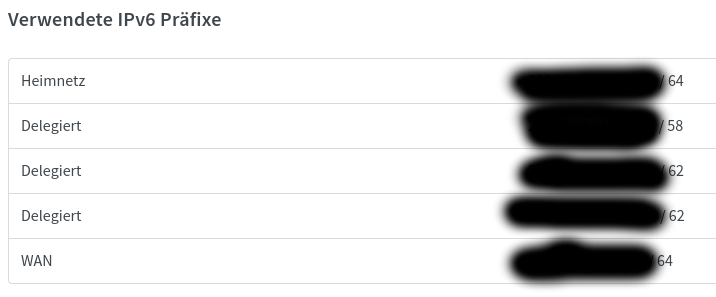
- Get your prefix-delegation size: → Home-Network → Network → Addition Settings → IPv6 Settings → find the little table at the bottom Choose the one with the “smallest number”/biggest Subnet (in this case
/58)Enter this value as prefix-delegation size in your WAN-Interface of the OPNSense.
After this is done, you need the router-stuff:
- enable “Identity Association” for your Interface and give it a fitting Interface ID
- enable dnsmasq on the interface and define a DHCP-range for IPv6. start address:
::1000end address::2000Constructor:<Your Interface>RA mode:ra-statelessThis !should! be all. Here are some websites to test if it was all:
External access
If you want your IPv6 servers to be accessible from the WWW, there are 2 options:
- either you have a button “open firewall for delegated nets”
- or you have to configure the OPNSense as an exposed host Otherwise the Fritzbox wont know where to route the packets, destined for your delegated range.
Exposed host means what is says
Your Firewall will be in the WWW, configure your firewall to handle this!
Getting firewall’d
some tips and tricks for firewall rules
IPv4
Your usual allow from intranet to internet rules should be enough here. For my DMZ, I also explicitly forbid connections from the DMZ nets to my Home-addresses (RFC1918).
IPv6
IPv6 is HUGE
Your prefix WILL change! Your hosts IP addresses thus also change!
Thus you can NOT deny/allow based on specific IP ranges. Instead, start thinking about Zones (designated by the interfaces/VLAN’s in the OPNSense). → You will block access to interfaces, instead of IP-Ranges.
To ensure that the DMZ devices can’t talk to my home-network, there is a block rule towards the LAN and WAN net. These “Aliases” are automatically updated by OPNSense to fit the current IPv6 prefix and should thus block all things. You don’t really have another chance, AFAIK.
Firewall-Groups
If you are feeling fancy, you can create Groups within the firewall. This way you wont have to edit the DMZ rule-set, simply add the new Interface to the group. More info: docs.opnsense.org
For IPv6 there are also rules on which addresses belong where, thus you can indeed block some address ranges. Your home-devices will mostly send traffic via their GUA tho, thus its not really going to work as expected and might break stuff. You can find some documentation on these here: ripe.net
Link to original
OPNSense HA
The goated tutorial
I simply followed this tutorial, it does just work! Youtube: Jim’s Garage
A small clarification: The virtual IP should resign within the DHCP-range configured for the interfaces. The interfaces static IP should not be equal to the virtual IP or the IP of the peer. So in short:
Devices Interface IP config OPNSense (master) LAN 10.1.1.2 (static IPv4) OPNSense (backup) LAN 10.1.1.3 (static IPv4) virtual IP LAN 10.1.1.1 You can also find the official docs here: OPNSense - HA and Carp And a little diagram of mine:
Transclude of OPNSense-HA.canvasProxmox and multicast
Proxmox blocks multicast packets
This breaks the HA-”sensing” and will result in split-brain, if you are running these VM’s across different hosts!
You can have a look at this old article, but essentially: Proxmox and some switches/routers may block multicast to safe bandwidth.
Most likely IGMP performed by my switch or Proxmox itself is the source of these troubles. To learn more, Cloudflare has an article on it: What is IGMP snooping?
Solution
To circumvent this limitation, simply set the Peer-Addresses in the Virtual IP settings to the Peers IP-Address within the network (the static IP set in the interface settings).
Disable HA sync for Peer addresses
You have to disable HA-Sync for these settings, as the Peer-addresses would otherwise sync as well
IPv6 and HA
I don’t have HA setup for IPv6, since nothing about my IPv6 is static. Instead, the router advertisements of the master have a higher priority.
The help-texts of OPNSense/dnsmasq also advice to set the
RA IntervalandRA router lifetimeto lower values to allow the clients to quickly notice if the router is down and switch to the one with the lower priority.What exact values can be extracted from the help texts.
Without these settings, I had a fail-over-time of around 30 secs.
Disable HA sync for the DHCPv6 ranges.
Otherwise the router-priorities will sync, resulting in master and backup having the same priority
If you plan to expose a Webserver, ensure that your DNS entry has the correct IPv6 address. Your sever gets two GUA’s now, if both routers are active, this isnt a problem as they will just pass it all through. If one is offline, there might be a time where the DNS entry still shows to the old address, while the machine hasnt reported its new one back yet.
IPv4 and Webservers
Be sure to add the virtual IP as the NAT default route, otherwise all the HA isn’t worth anything :)
IPv4 and DHCP
You have to manually configure the DHCP Gateway since per default the Interface IP is send. This would break all routes, if the Interface goes offline :3
Some info on how to here:
- https://www.reddit.com/r/opnsense/comments/1ldha7c/migration_isc_dhcp_to_dnsmasq_how_to_use_custom/
- https://efficientip.com/glossary/dhcp-option/
TL;DR: 0. create a Tag (This step is slightly important)
- go into
Dnsmasq > DHCP Optionscreate a new entry for the Interface with these values:
Label Value Interface <your interface>Type Set Option router [3] Option 6 (idk, good luck!) Tag <Your Tag>Value <Carp IP>Link to original
- assign the Tag to the DHCP range under
Dnsmasq > DHCP Ranges- PROFIT